> ## Documentation Index
> Fetch the complete documentation index at: https://docs.mage.ai/llms.txt
> Use this file to discover all available pages before exploring further.
# Git terminal with built-in authentication and shortcuts
> Mage Pro supports Git-based version control, making it easy to collaborate, track changes, and manage code across environments.
export const ProOnly = ({button = 'Get started for free', description = 'Try our fully managed solution to access this advanced feature.', source = 'documentation', title = 'Only in Mage Pro.'}) => ;
export const ProButton = ({href, label = 'Get started with Mage Pro for free', source = 'documentation'}) => ;
### Introduction
The Git Terminal is a browser based terminal with built in Git authentication,
directly integrated into Mage Pro. It provides standard Git functionality with
real-time collaboration features, eliminating the need to switch between tools for
version control operations. Multiple team members can work simultaneously in
the same terminal session, sharing commands and coordinating development work.
### Location
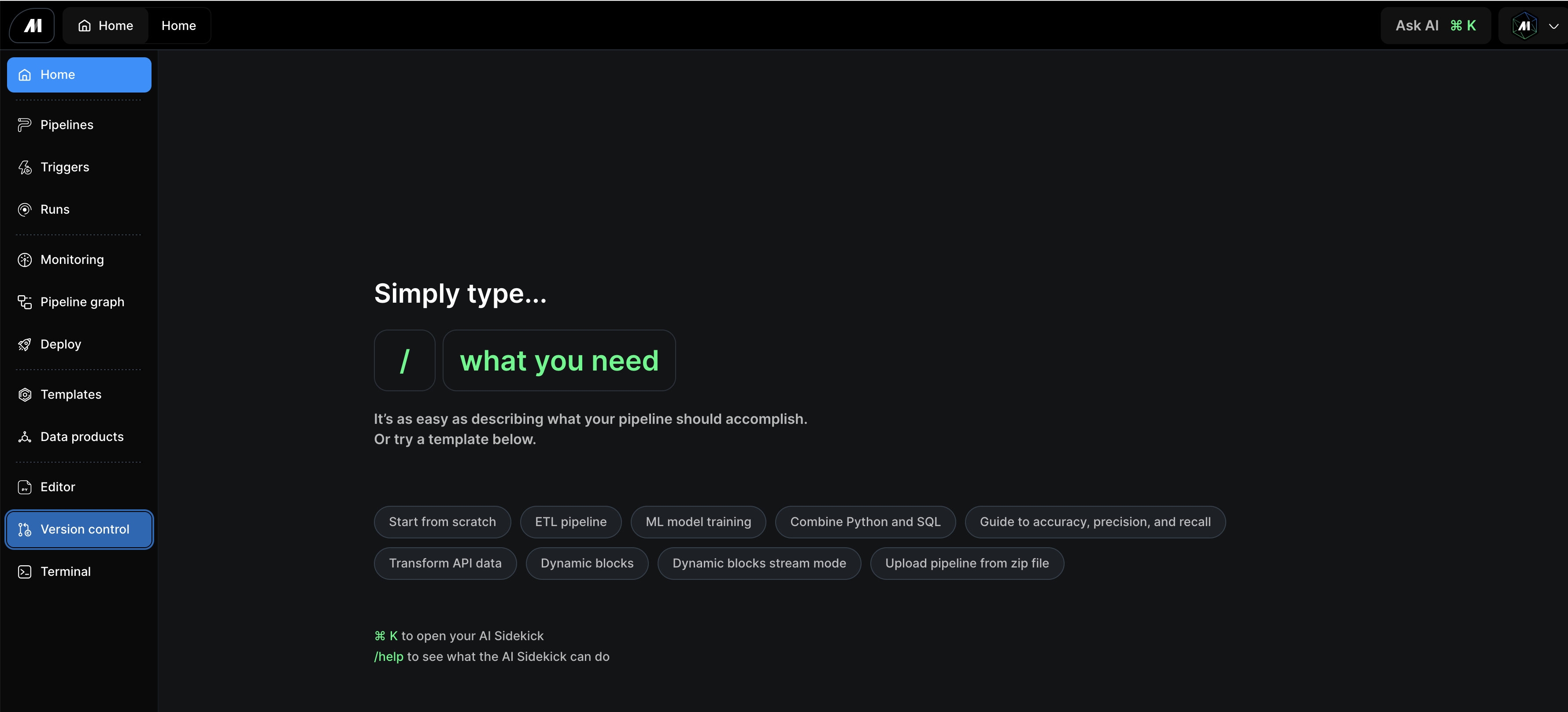
From the home page, hover over the left popout navigation menu and click
**Terminal**. You will then be taken to a terminal screen directly integrated
with Git.
 ### Integration
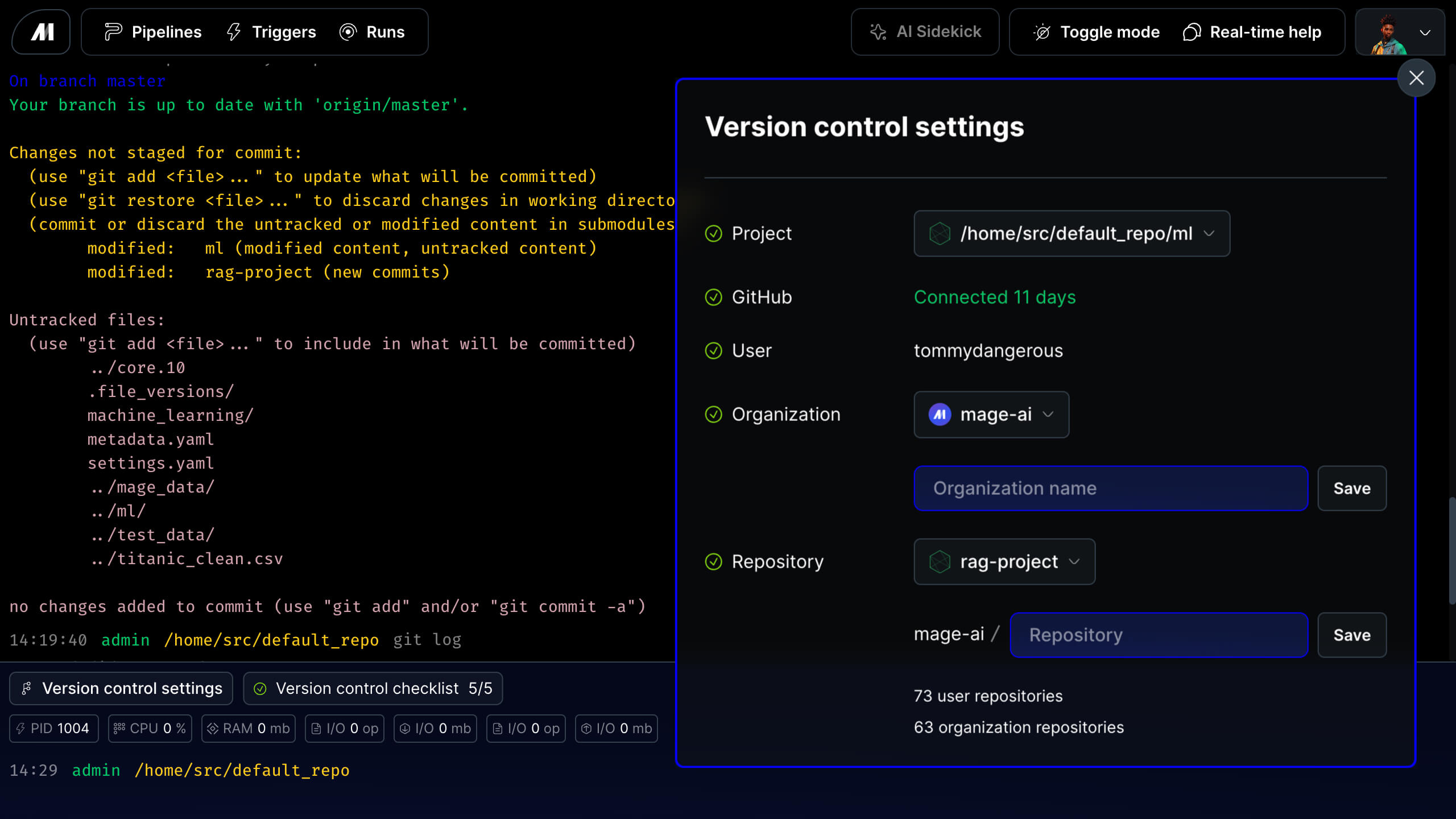
The Git Terminal connects with your existing development workflow. Key integration points include:
* GitHub, GitLab, and other Git providers
* Maintains authentication across sessions
* Works within existing Mage Pro workflow
### Integration
The Git Terminal connects with your existing development workflow. Key integration points include:
* GitHub, GitLab, and other Git providers
* Maintains authentication across sessions
* Works within existing Mage Pro workflow
 ### Use Cases
Use the Git Terminal in your development environment to push changes to GitHub for source version control after making modifications to pipelines, blocks, or configurations in the Mage UI. Essential use cases include:
* Before deploying changes to save work to version control
* For regular commits to maintain code history and backup
### Authentication
Before using the Git Terminal, authenticate with your Git provider through the Deploy App. This one-time setup enables Git operations within Mage Pro.
**Quick Setup:**
1. Navigate to **Deployments** → **Connect repository**
2. Complete OAuth authentication for GitHub, Bitbucket, GitLab, or Azure DevOps
3. Configure your repository connection
*For detailed authentication steps, see the [Version control guide](https://docs.mage.ai/guides/data-sync/version-control-guide).*
Once authenticated, the Git Terminal automatically uses your credentials for all Git operations without requiring additional setup.
For OAuth connections, each terminal session receives a session-scoped Git credential helper for the connected repository's Git provider. HTTPS Git commands such as `git fetch`, `git pull`, and `git push` can use the OAuth token already connected in Mage, and provider CLI commands can read the matching session token environment variable without running a separate CLI login such as `gh auth login`.
If the terminal header shows **Authenticate Git**, Mage has not detected usable Git authentication for the repository, either from the terminal environment such as an environment token, GitHub CLI login, or SSH key, or from a connected Git OAuth token. Select **Authenticate Git** to open the repository connection page for the current project, complete the Deployments Git OAuth flow, and then return to the terminal. If you authenticate Git directly in the terminal, Mage hides the action after it detects that Git authentication is available.
The Mage Pro image includes GitHub CLI (`gh`) for optional GitHub authentication
and status checks. For GitLab, Azure DevOps, and Bitbucket, use standard Git
commands with Mage's credential helper or configured SSH/PAT authentication;
provider-specific CLIs are not required.
### Usage
The Git Terminal supports all standard Git operations you're familiar with. Run standard Git commands such as:
```python theme={"system"}
git status # Check current changes
git add . # Stage all changes
git commit -m "message" # Commit with description
git push origin main # Push to remote repository
```
### Terminal controls
Use terminal tabs when you need more than one shell context. Each tab runs its
own terminal session, keeps its own working directory, and can be reconnected or
closed without interrupting the other tabs.
The prompt bar shows the current folder, Git branch, and working tree change
counts for the active tab. Autocomplete appears while typing and can suggest
shell commands, Git subcommands, files, folders, executable commands on `PATH`,
and recent command history.
Terminal prompt timestamps and shell commands use UTC by default. If your
workspace has **Display local timezone** enabled, new terminal sessions use your
browser's local IANA timezone for the prompt timestamp and the session `TZ`
environment variable.
### Conclusion
The Git Terminal streamlines your development workflow by bringing version control directly into the Mage Pro environment.
With built-in authentication, real-time collaboration, and standard Git functionality, teams can maintain professional development
practices without the complexity of managing separate tools. This integrated approach enables faster development cycles while ensuring
code changes are properly tracked and shared across your team.
### Use Cases
Use the Git Terminal in your development environment to push changes to GitHub for source version control after making modifications to pipelines, blocks, or configurations in the Mage UI. Essential use cases include:
* Before deploying changes to save work to version control
* For regular commits to maintain code history and backup
### Authentication
Before using the Git Terminal, authenticate with your Git provider through the Deploy App. This one-time setup enables Git operations within Mage Pro.
**Quick Setup:**
1. Navigate to **Deployments** → **Connect repository**
2. Complete OAuth authentication for GitHub, Bitbucket, GitLab, or Azure DevOps
3. Configure your repository connection
*For detailed authentication steps, see the [Version control guide](https://docs.mage.ai/guides/data-sync/version-control-guide).*
Once authenticated, the Git Terminal automatically uses your credentials for all Git operations without requiring additional setup.
For OAuth connections, each terminal session receives a session-scoped Git credential helper for the connected repository's Git provider. HTTPS Git commands such as `git fetch`, `git pull`, and `git push` can use the OAuth token already connected in Mage, and provider CLI commands can read the matching session token environment variable without running a separate CLI login such as `gh auth login`.
If the terminal header shows **Authenticate Git**, Mage has not detected usable Git authentication for the repository, either from the terminal environment such as an environment token, GitHub CLI login, or SSH key, or from a connected Git OAuth token. Select **Authenticate Git** to open the repository connection page for the current project, complete the Deployments Git OAuth flow, and then return to the terminal. If you authenticate Git directly in the terminal, Mage hides the action after it detects that Git authentication is available.
The Mage Pro image includes GitHub CLI (`gh`) for optional GitHub authentication
and status checks. For GitLab, Azure DevOps, and Bitbucket, use standard Git
commands with Mage's credential helper or configured SSH/PAT authentication;
provider-specific CLIs are not required.
### Usage
The Git Terminal supports all standard Git operations you're familiar with. Run standard Git commands such as:
```python theme={"system"}
git status # Check current changes
git add . # Stage all changes
git commit -m "message" # Commit with description
git push origin main # Push to remote repository
```
### Terminal controls
Use terminal tabs when you need more than one shell context. Each tab runs its
own terminal session, keeps its own working directory, and can be reconnected or
closed without interrupting the other tabs.
The prompt bar shows the current folder, Git branch, and working tree change
counts for the active tab. Autocomplete appears while typing and can suggest
shell commands, Git subcommands, files, folders, executable commands on `PATH`,
and recent command history.
Terminal prompt timestamps and shell commands use UTC by default. If your
workspace has **Display local timezone** enabled, new terminal sessions use your
browser's local IANA timezone for the prompt timestamp and the session `TZ`
environment variable.
### Conclusion
The Git Terminal streamlines your development workflow by bringing version control directly into the Mage Pro environment.
With built-in authentication, real-time collaboration, and standard Git functionality, teams can maintain professional development
practices without the complexity of managing separate tools. This integrated approach enables faster development cycles while ensuring
code changes are properly tracked and shared across your team.