> ## Documentation Index
> Fetch the complete documentation index at: https://docs.mage.ai/llms.txt
> Use this file to discover all available pages before exploring further.

# Pipeline sidekick

> Have you ever wished you had a sidekick like Batman and Robin? Now you have one.

export const ProOnly = ({button = 'Get started for free', description = 'Try our fully managed solution to access this advanced feature.', source = 'documentation', title = 'Only in Mage Pro.'}) => <div className="block my-4 px-5 py-4 overflow-hidden rounded-xl flex gap-3 border border-emerald-500/20 bg-emerald-50/50 dark:border-emerald-500/30 dark:bg-emerald-500/10">
    <div style={{
  display: 'flex',
  alignItems: 'center',
  width: '100%'
}}>
      <div className="text-sm prose min-w-0 text-emerald-900 dark:text-emerald-200" style={{
  flex: 1
}}>
        <span className="font-semibold">{title}</span>
        <p className="normal">{description}</p>
      </div>

      <div> </div>

      <div style={{
  height: 32,
  position: 'relative'
}}>
        <a target="_blank" rel="noopener noreferrer" className="group px-4 py-1.5 relative inline-flex items-center text-sm font-medium rounded-full" href={`https://cloud.mage.ai/sign-up?source=${source}`}>
          <span className="absolute inset-0 bg-primary-dark dark:bg-primary-light/10 border-primary-light/30 rounded-full dark:border group-hover:opacity-[0.9] dark:group-hover:border-primary-light/60">
          </span>

          <div className="mr-0.5 space-x-2.5 flex items-center">
            <span className="z-10 text-white dark:text-primary-light">
              {button}
            </span>

            <svg width="3" height="24" viewBox="0 -9 3 24" className="h-5 rotate-0 overflow-visible text-white/90 dark:text-primary-light">
              <path d="M0 0L3 3L0 6" fill="none" stroke="currentColor" strokeWidth="1.5" strokeLinecap="round"></path>
            </svg>
          </div>
        </a>
      </div>
    </div>
  </div>;

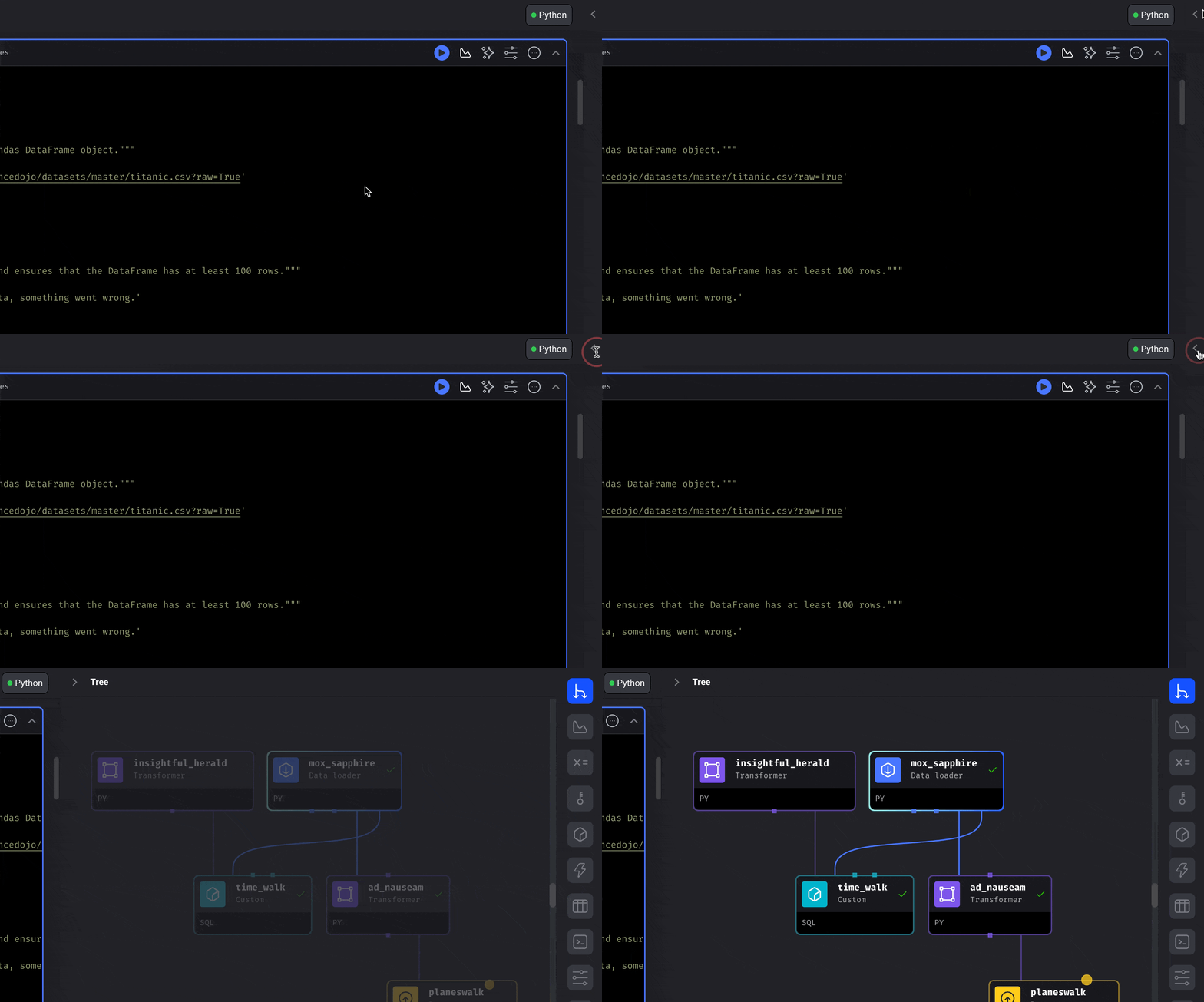
The Pipeline sidekick appears when you edit a pipeline.
<Frame>
  <p align="center">
    <img alt="The Pipeline sidekick appears when you edit a pipeline." src="https://mage-ai.github.io/assets/dev-ux/sidekick/open-sidekick.gif" />
  </p>
</Frame>

In the top right corner of the page, click the `Chevron` or `Arrow` looking icon to expand
the right panel and reveal the Sidekick.

***

## Visualize block output data

<ProOnly source="pipeline-dependencies" />

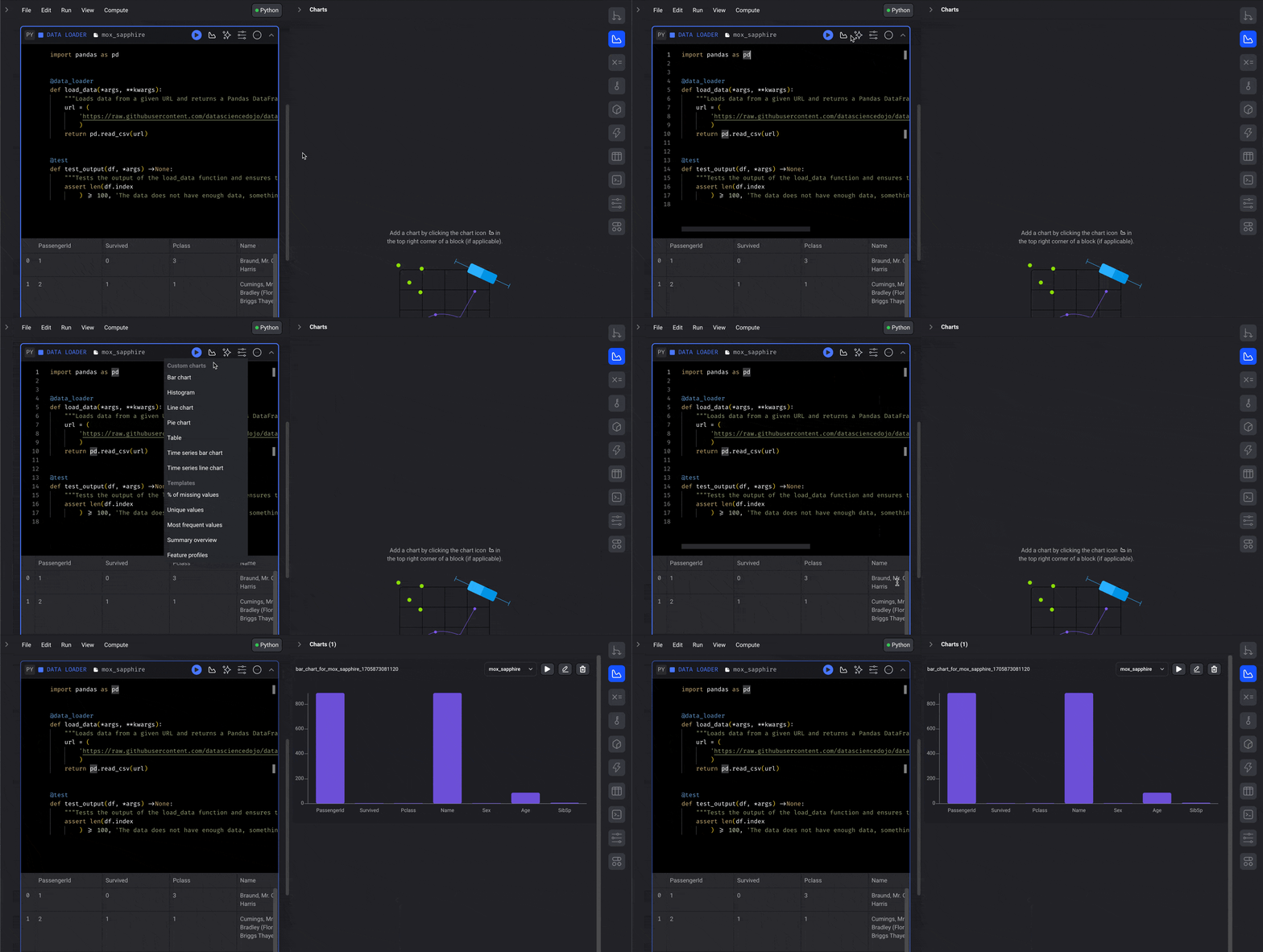
Add 1 or multiple charts to visualize the data produced by a block.

When viewing block output as a table in the Sidekick data view, click a column
header to sort the preview or use the filter icon to narrow rows by column value.
Sorting and filtering only change the current table preview; they don’t modify
the block output saved by the pipeline.
<Frame>
  <p align="center">
    <img alt="Visualize block output data." src="https://mage-ai.github.io/assets/dev-ux/sidekick/add-chart.gif" />
  </p>
</Frame>

[Read more](/visualizations/dashboards) about how to create entire dashboards
for an individual pipeline or for the entire project.

***

## Configure pipeline variables
<Frame>
  <p align="center">
    <img alt="Configure pipeline variables." src="https://mage-ai.github.io/assets/dev-ux/sidekick/variables.png" />
  </p>
</Frame>

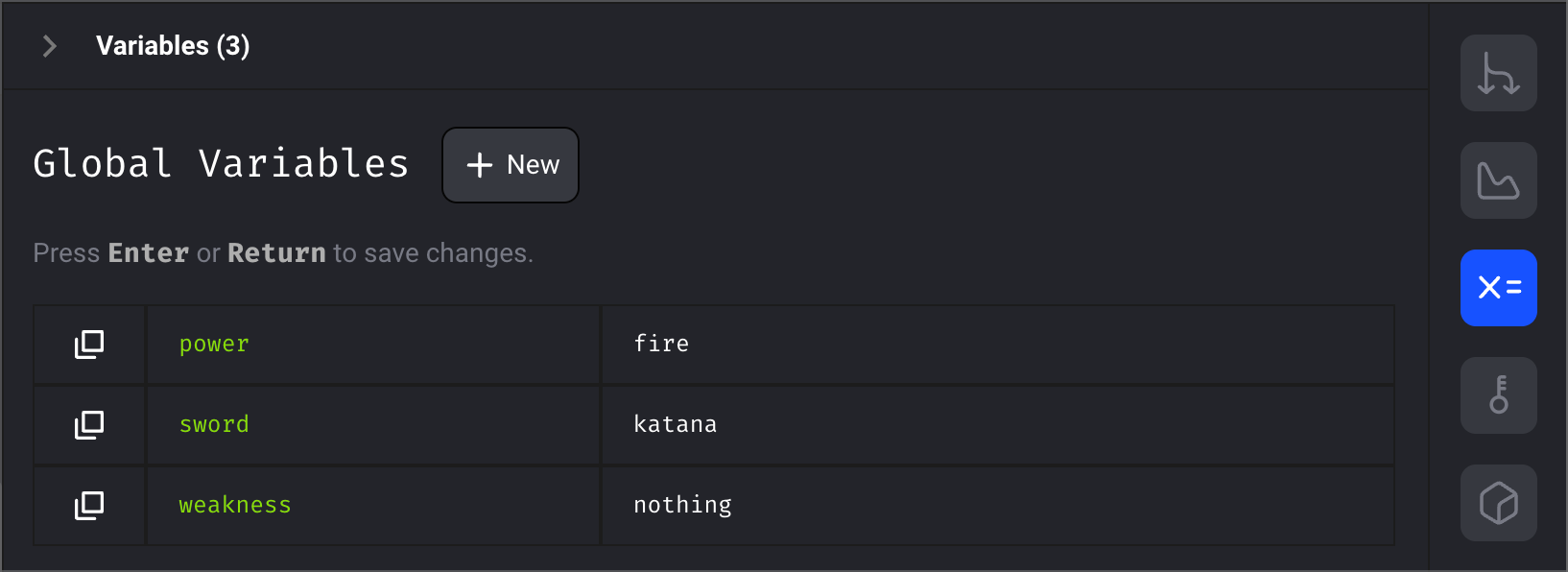
Use variables in your code and interpolate them at runtime.
These variables can be defined at the moment the pipeline is triggered or
pre-configured from the Sidekick.

[Read more here](/getting-started/runtime-variable)

***

## Store sensitive secrets

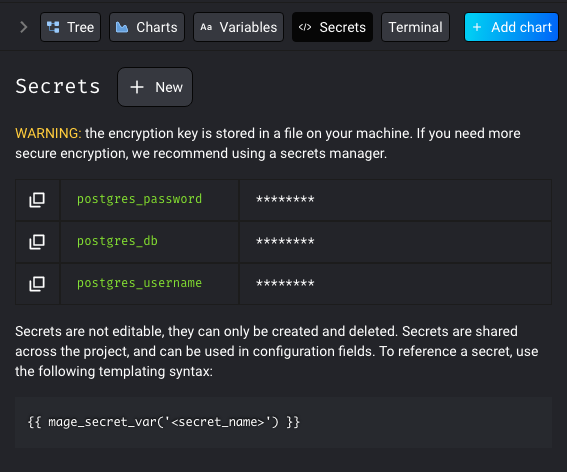
Secrets don’t make friends... but they save companies from oblivion.
<Frame>
  <p align="center">
    <img alt="Store sensitive secrets." src="https://mage-ai.github.io/assets/create-secrets.png" />
  </p>
</Frame>

[Read more here](/development/variables/secrets)

***

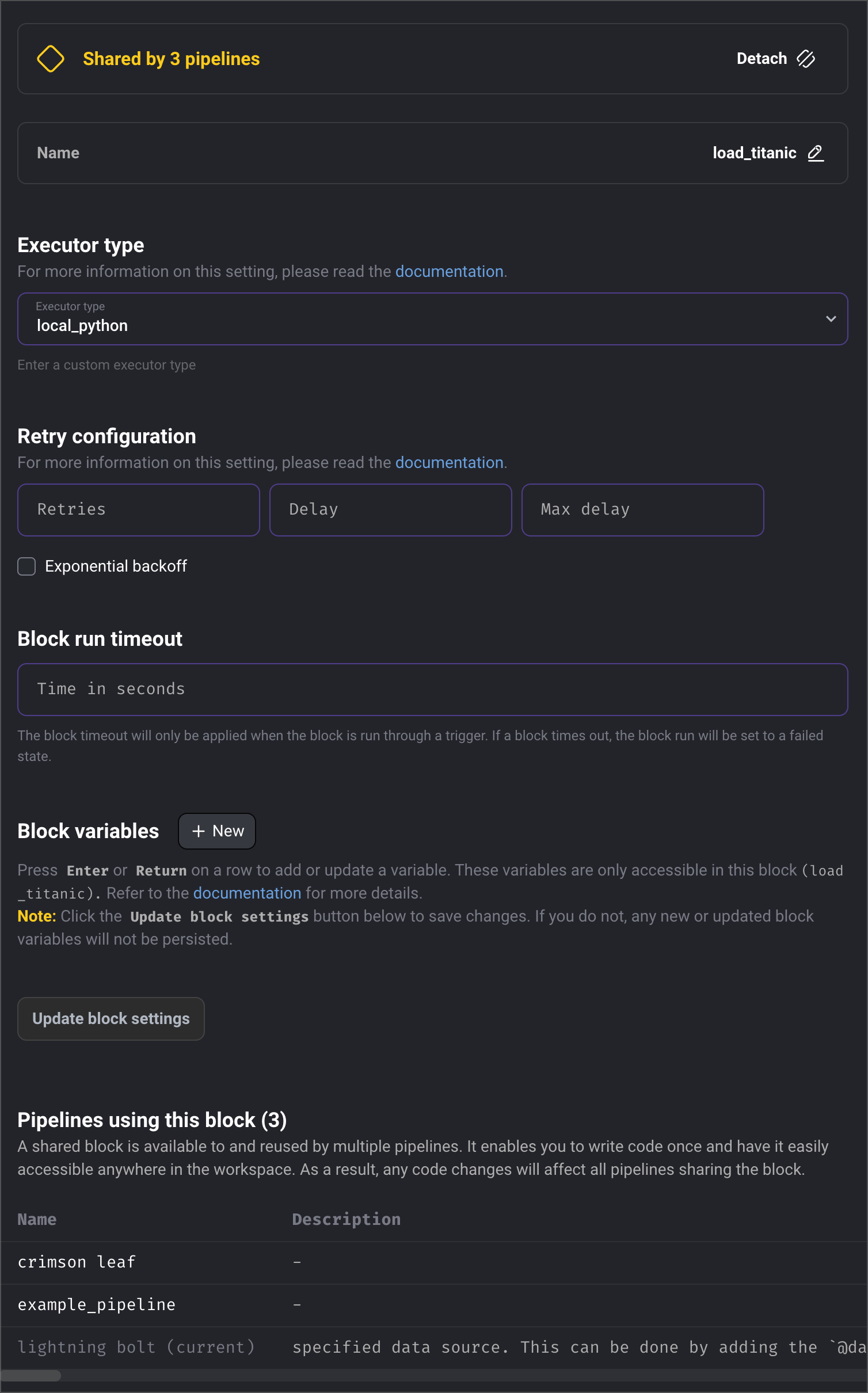
## Customize settings for every individual block

1. Rename a block
2. Set what execution engine the block should use
3. Configure how the block should retry itself in case of failure
4. Set a timeout limit for how long the block can run before it should fail
5. Configure variables specific to a block
6. View which pipelines are currently using a block
<Frame>
  <p align="center">
    <img alt="Customize settings for every individual block." src="https://mage-ai.github.io/assets/dev-ux/sidekick/block-settings.png" />
  </p>
</Frame>

***
