

Requires version
0.9.63 or greater. Mage loads and schedules pipelines from one project
repository per workspace. If you previously registered multiple projects through the
project platform, migrate each project to a separate Mage Pro
workspace before upgrading.Overview
If you have a zip file with a pipeline’smetadata.yaml configuration file and block files,
you can import that pipeline into your project. This could be useful if you want to import
a pipeline from a different project.
The pipeline importer supports a single pipeline ZIP file. In Mage Pro, the Pipelines dashboard
also supports bulk import from one ZIP archive that contains multiple pipelines, including
project-style archives with pipelines/[pipeline_uuid]/metadata.yaml or bundled exported
pipeline folders.
Use pipeline import for pipeline metadata and pipeline block source files. In Mage Pro, if your
ZIP contains a full Mage project repository, upload it from the same dashboard importer or
click Set up with Git to configure Git in the current workspace. Mage Pro loads one Mage
project repository per workspace.
Supported block file types
- Custom
- Callback
- Chart
- Conditional
- Data exporter
- Data loader
- Extension
- Markdown
- Scratchpad
- Sensor
- Transformer
Unsupported block file types
Including these types of block files in your pipeline zip file may cause errors when trying to import it.- dbt
Downloading a pipeline
You can download a pipeline from your project as a zip file by going to the Pipelines Dashboard (/pipelines), right-clicking one of the pipeline rows, and selecting
“Download (keep folder structure)” or “Download (without folder structure)”. You can use
this pipeline zip file to import the pipeline into another Mage project.
When you choose “Download (without folder structure)”, Mage flattens file paths unless
multiple included files have the same basename. In that case, Mage rejects the flattened
download so files cannot overwrite each other; choose “Download (keep folder structure)”
to preserve each source file in the zip file.
In Mage Pro, the same right-click menu includes Copy URL, which copies the pipeline’s direct
URL to your clipboard.
Downloaded pipeline zip files include the pipeline metadata.yaml and source files for
regular, callback, conditional, chart, and extension blocks when those files are present
in the project.
Required files and folder structure of imported pipeline zip file
At a minimum, the pipeline zip file (which has a.zip file extension) should contain a
root folder and a pipeline configuration file (i.e. metadata.yaml). There could be zero block
files if the pipeline has no blocks.
Single folder structure
- Root folder
- Pipeline config file (
metadata.yaml) - Block file 1 (e.g.
block1.py) - Block file 2 (e.g.
block2.py) - Additional block files…
- Pipeline config file (
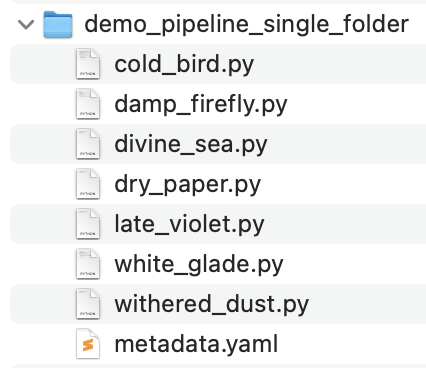
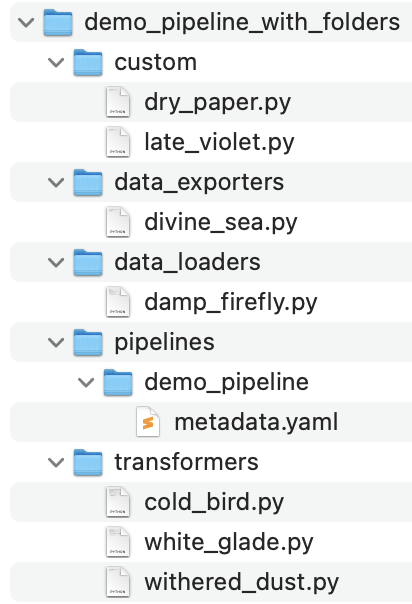
Subfolder structure
- Root folder
- Pipelines folder (i.e.
pipelines)- Pipeline folder (this is the pipeline UUID)
- Pipeline config file (
metadata.yaml)
- Pipeline config file (
- Pipeline folder (this is the pipeline UUID)
- Block type 1 folder (e.g.
data_loaders,transformers,custom, etc.)- Block file 1 for block type 1 (e.g.
data_loader_block_file1.py) - Block file 2 for block type 1 (e.g.
data_loader_block_file2.py) - Additional block files for block type 1…
- Block file 1 for block type 1 (e.g.
- Block type 2 folder (e.g.
data_exporters,sensors,scratchpads, etc.)- Block file 1 for block type 2 (e.g.
transformer_block_file1.py) - Block file 2 for block type 2 (e.g.
transformer_block_file2.py) - Additional block files for block type 2…
- Block file 1 for block type 2 (e.g.
- Additional block folders and files…
- Pipelines folder (i.e.
Mage Pro bulk pipeline imports
Mage Pro users can import one ZIP archive that contains multiple pipeline definitions.Multi-pipeline archive structure
A single ZIP can include multiple pipeline folders in either a shared project-style layout or a bundle of exported pipeline folders. For a shared project-style layout, each pipeline has its ownmetadata.yaml file under
pipelines/[pipeline_uuid]/, while block source folders are shared at the archive root.
- Root folder
- Pipelines folder (i.e.
pipelines)- First pipeline folder
- Pipeline config file (
metadata.yaml)
- Pipeline config file (
- Second pipeline folder
- Pipeline config file (
metadata.yaml)
- Pipeline config file (
- First pipeline folder
- Block type 1 folder (e.g.
data_loaders,transformers,custom, etc.)- Block file 1 for block type 1 (e.g.
data_loader_block_file1.py) - Block file 2 for block type 1 (e.g.
data_loader_block_file2.py) - Additional block files for block type 1…
- Block file 1 for block type 1 (e.g.
- Block type 2 folder (e.g.
data_exporters,sensors,scratchpads, etc.)- Block file 1 for block type 2 (e.g.
transformer_block_file1.py) - Block file 2 for block type 2 (e.g.
transformer_block_file2.py) - Additional block files for block type 2…
- Block file 1 for block type 2 (e.g.
- Additional block folders and files…
- Pipelines folder (i.e.
pipelines/[pipeline_uuid]/.
- Root folder
- First exported pipeline folder
- Pipelines folder (optional when the exported folder already uses project structure)
- Pipeline folder
- Pipeline config file (
metadata.yaml)
- Pipeline config file (
- Pipeline folder
- Block type 1 folder (e.g.
data_loaders,transformers,custom, etc.)- Block file 1 for block type 1 (e.g.
data_loader_block_file1.py)
- Block file 1 for block type 1 (e.g.
- Additional block folders and files…
- Pipelines folder (optional when the exported folder already uses project structure)
- Second exported pipeline folder
- Pipelines folder (optional)
- Pipeline folder
- Pipeline config file (
metadata.yaml)
- Pipeline config file (
- Pipeline folder
- Block type 1 folder
- Block file 1 for block type 1
- Additional block folders and files…
- Pipelines folder (optional)
- First exported pipeline folder
metadata.yaml and its local block
folders inside a top-level pipelines/ folder. Do not add a root project metadata.yaml unless
you are uploading a full Mage project archive.
Multiple pipelines in the same import can reference the same block file path when the block source
is shared. Mage reports import conflicts at the pipeline level, such as a pipeline that already
exists in the workspace or a duplicate pipeline UUID in the selected archive. Shared block files
do not create separate block-level conflicts. If an incoming block file path already exists with
different contents, Rename keeps the existing block file and writes the incoming block to a
renamed path, while Overwrite intentionally replaces matching block files.
Upload exactly one ZIP at a time. A single ZIP can contain multiple pipelines or one full Mage
project.
How to import pipeline archives in bulk
- Go to the Pipelines Dashboard (
/pipelines). - Click the New pipeline menu.
- Select Upload.
- Add one pipeline ZIP file by clicking the file drop area or by dragging and dropping it into it. The selected ZIP file must be 5 MB or less. Mage also rejects imports when the selected ZIP archive expands to more than 500 MB uncompressed or contains more than 10,000 ZIP entries in total.
- Do not select multiple ZIP files. If you have multiple exported pipeline ZIPs, zip their exported folders together into one archive before uploading.
- If you upload one valid pipeline ZIP with no conflicts or failures, Mage shows a create form. Optionally update the pipeline name, description, and comma-separated tags, then click Create.
- Otherwise, review the validation results before importing. Mage lists the pipelines found,
conflicts, failures, skipped pipelines, full-project archives, and validation errors such as
invalid
metadata.yamlYAML. - If Mage finds conflicts, choose a conflict strategy:
- Rename keeps existing pipelines and imports conflicting pipelines with suffixed UUIDs.
- Overwrite replaces matching pipeline and block files.
- Skip leaves conflicting pipelines unchanged.
- Mage rolls back a pipeline if writing any of its files fails. Other pipelines imported successfully from the same archive remain available.
- Click Import pipelines to process every pipeline in the selected archive.
Full Mage project archives
A full Mage project archive can include the root projectmetadata.yaml, the pipelines
folder, io_config.yaml, requirements.txt, dbt, plugins, utils, and other repository
assets. The project files can be at the ZIP root or inside a single top-level project folder. The
Mage Pro dashboard importer detects this archive type and keeps it in the upload modal.
For a full project migration:
- Create or use the Mage Pro workspace that should own the project repository.
- Go to the Pipelines Dashboard (
/pipelines), click the New pipeline menu, and select Upload. - Add the full project ZIP. Mage shows Full Mage project archive detected and summarizes the project assets found in the ZIP.
- Review the project file summary. Mage classifies project files as new files, conflicting files
with different contents, identical files that can be reused, or protected files that are not
uploaded. Protected files include
.env,.env.*variants such as.env.stagingand.env.test,.envrc, workspace variable folders, Git metadata, and generated caches. - If Mage finds conflicting project files, choose a project conflict strategy:
- Overwrite conflicting files replaces existing project files that have different contents.
- Skip conflicting files uploads only new files and leaves existing paths unchanged.
- Cancel and review stops without writing files so you can inspect the archive first.
- Click Upload project to upload project code and configuration into the current workspace. Project ZIP uploads are applied atomically: if any project file write fails, Mage restores every file changed by that upload.
- To use a Git repository instead of a ZIP upload, click Set up with Git to open Deployments in the current workspace.
- Configure credentials, environment variables, secrets, OAuth connections, workspace-level compute settings, and deployment-specific settings separately.